How to Add or Update Product FAQs
Shows how to add or update FAQs on a live product page using the structured FAQ fields in Exhibit Central — Product Data, and how to clear leftover content from the older Product Additional Tabs editor so customer-facing FAQs stay consistent.
Steps to Follow
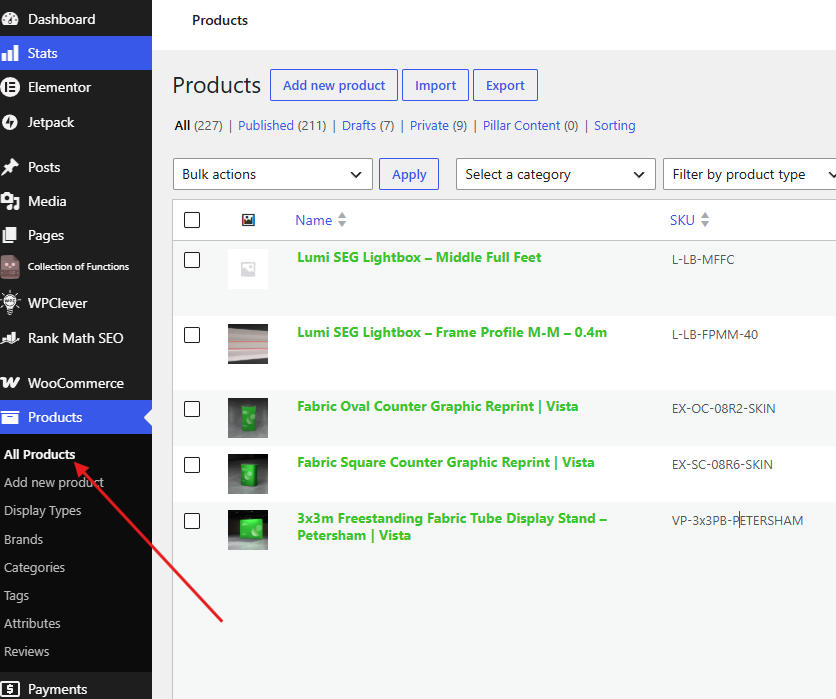
Log in to the live Exhibit Central WordPress admin, then go to Products → All Products in the left sidebar.
Find the product you need to update. You can use the search box or filter by status if the list is long. Open the product to edit it.
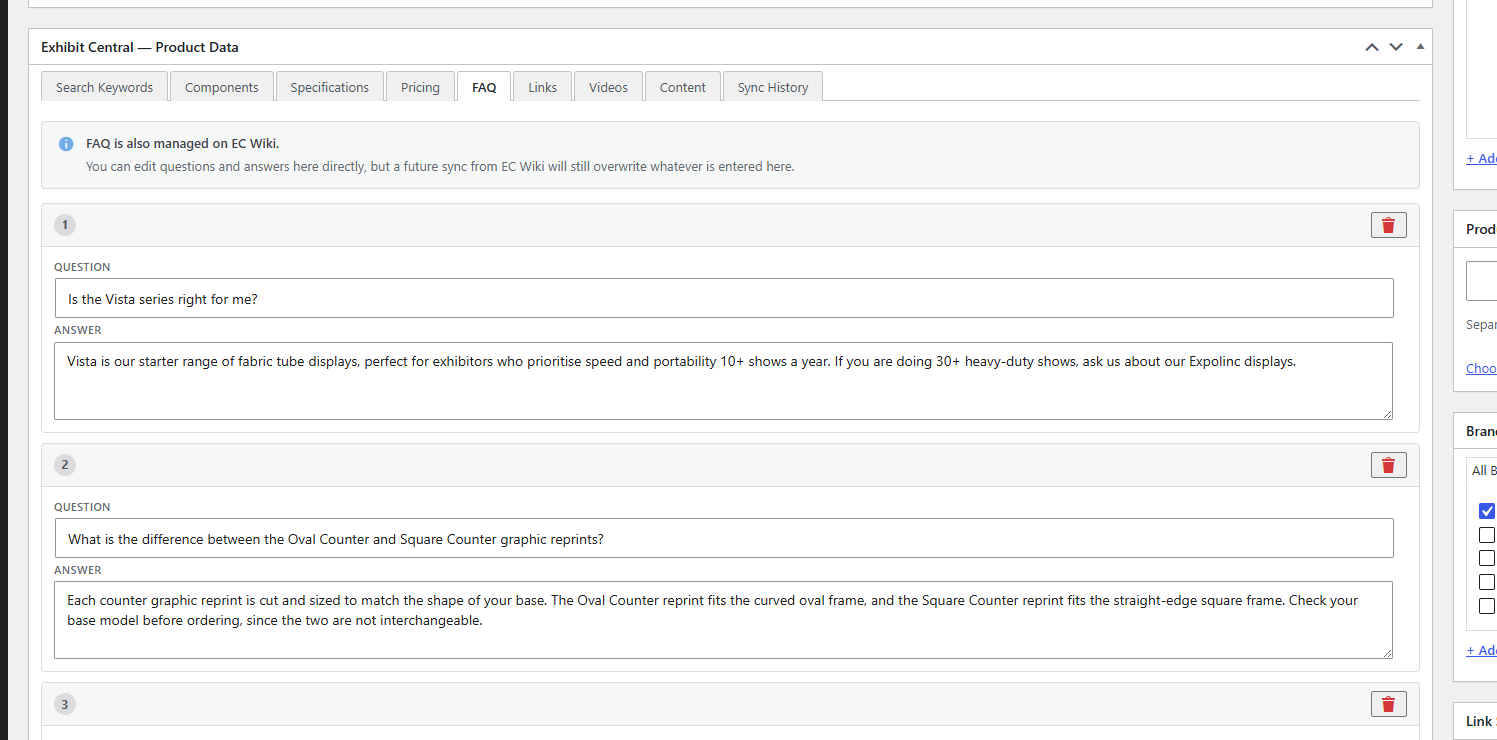
On the product edit screen, scroll to the Exhibit Central — Product Data box and open the FAQ tab. This is the new FAQ editor. Each item is a plain Question and Answer pair, so you do not need to write HTML or worry about fonts and headings looking different from other products.
Add new rows for new FAQs, or edit the existing question and answer text. Use the trash icon on a row if that FAQ should be removed. Leave the fields ready to save when the list looks right.
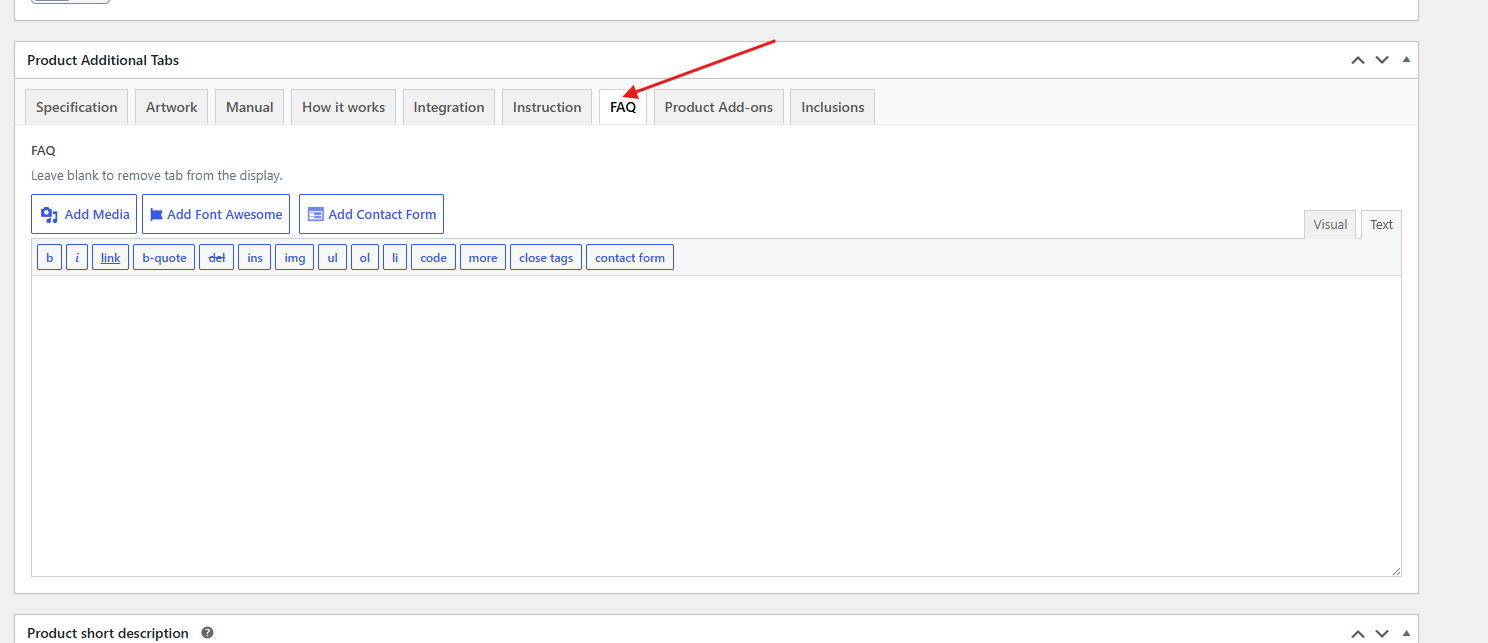
Next, check the older Product Additional Tabs box and open its FAQ tab. If there is any content in that rich text field, clear it completely. Leaving old FAQ copy there can conflict with the structured FAQs and is what used to create uneven templates, fonts, and headers on product pages.
The note under that field says to leave it blank to remove the tab from display. After clearing, the customer-facing FAQ should come from the Exhibit Central — Product Data FAQ entries only, which keeps the layout consistent across products.
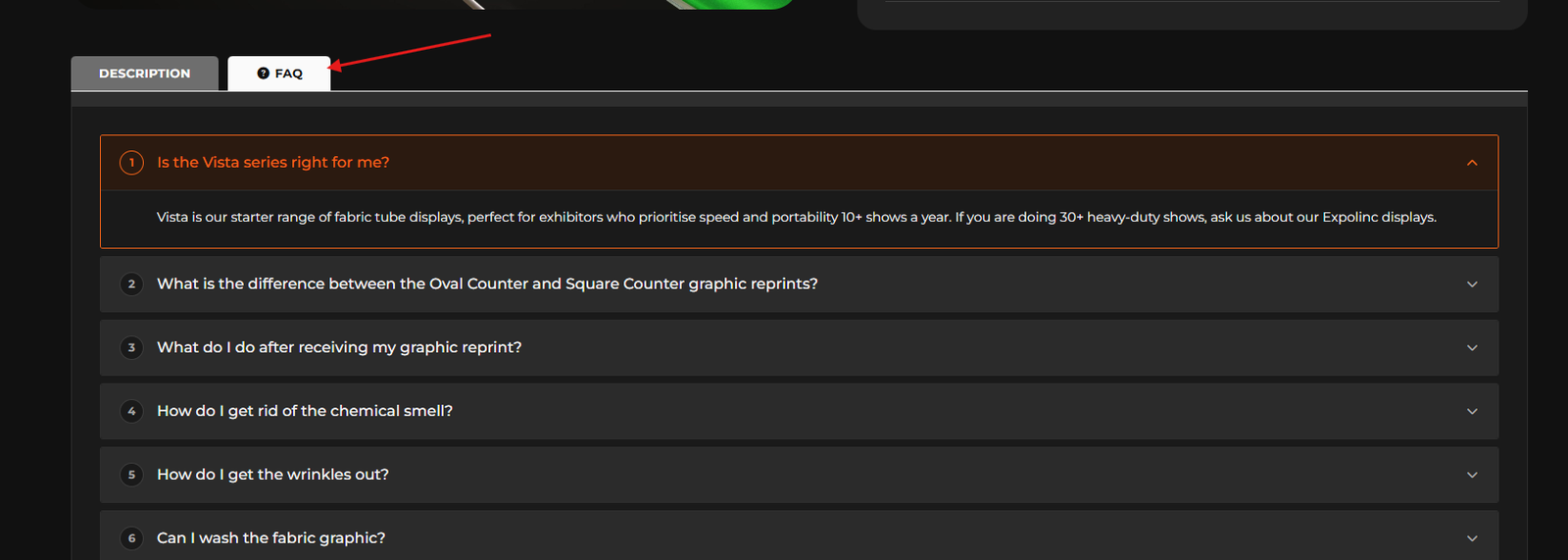
Update or publish the product, then open the product on the live site and select the FAQ tab. Confirm the questions appear in the expected order as the numbered accordion, and that the answers match what you entered in Exhibit Central — Product Data.
If something still looks like old rich-text formatting, go back and double-check that the Product Additional Tabs FAQ field was fully cleared and that the product was saved after the change.